How to Update Your Minecraft Server to 26.2: Java 25, Plugins and Backups
Minecraft 26.2 "Chaos Cubed" was released on June 16, 2026 — the second game drop under Mojang's year.drop.hotfix versioning system. Still running 26.1.2? Then you're one drop behind. Good news: 26.2 keeps the same Java 25 requirement that 26.1 introduced, so if you already made that jump, this update is a five-minute job.
This guide is for two groups: customers of our Minecraft server hosting who want to update to 26.2 through the panel, and anyone running self-hosted or with another provider. We cover what changed, what to check before updating, and the step-by-step flow for Paper, Vanilla, Forge and Fabric. Plus troubleshooting for when your server won't start after the upgrade — including the Java 25 error that still catches most servers coming from 1.21.x.
Quick update steps for OXY.Games customers
The short version for our customers:
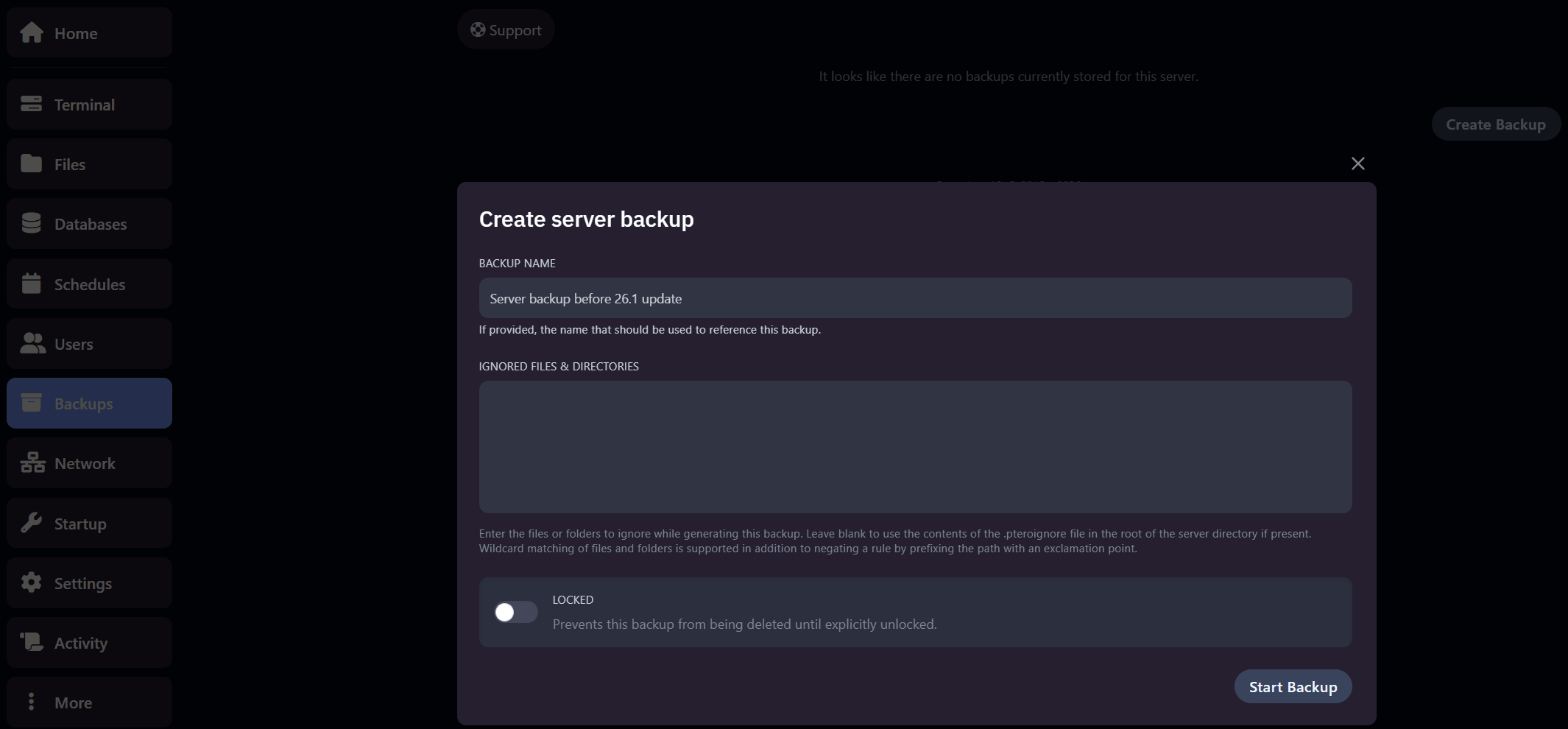
- Create a backup first via Backups → Create backup in the panel
- Stop your server completely
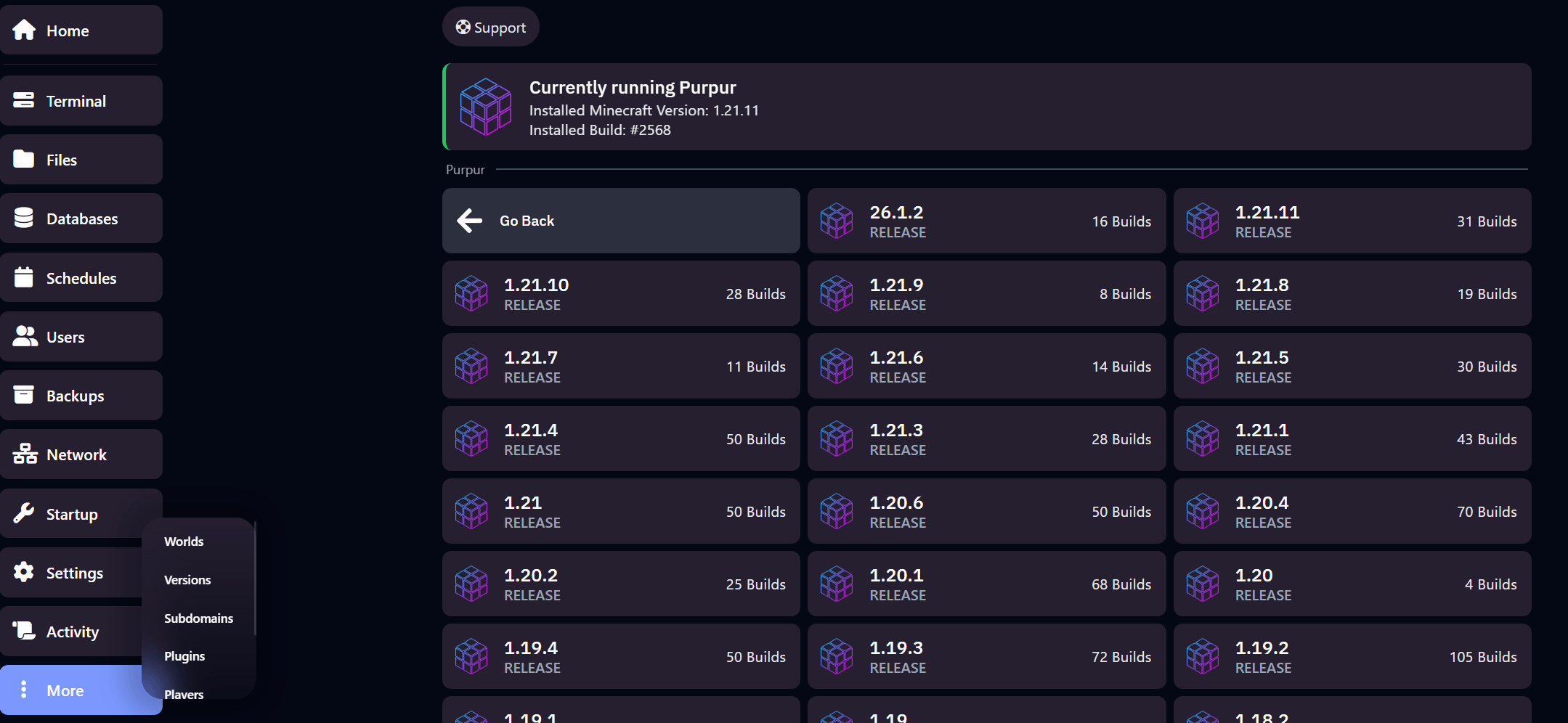
- Go to More → Versions and select 26.2 (Purpur, Paper, Vanilla, Forge or Fabric)
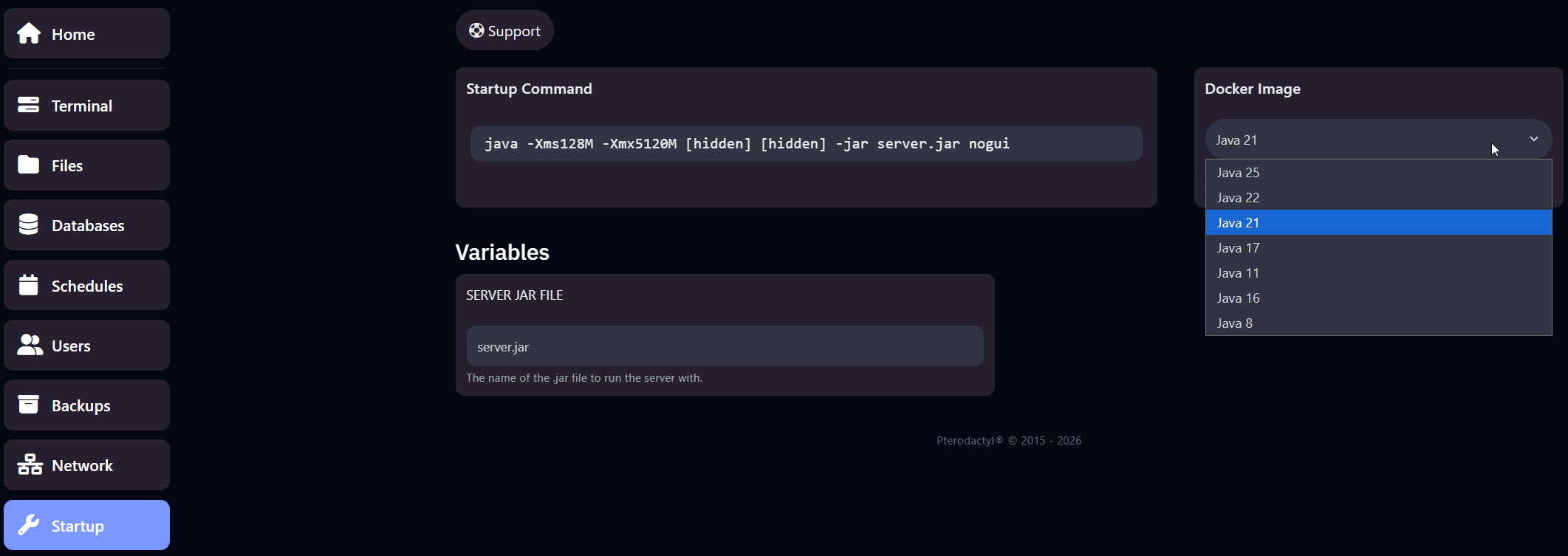
- Go to Startup → Java version and check it's set to Java 25 (already on 25 since 26.1? Nothing to change)
- Start your server and check the console for errors
- Update your plugins via More → Plugins → Installed Plugins (or mods via More → Mods)
Below, we go through each step in more detail and cover the most common problems after updating.
Is 26.1.2 the latest Minecraft version?
No. 26.1.2 was the final hotfix of the 26.1 "Tiny Takeover" drop. The current version is 26.2 "Chaos Cubed", released on June 16, 2026. In Mojang's version numbering, 26 is the year and 2 means the second drop of that year — so 26.2 follows 26.1.2, even though the number looks smaller.
Coming from 26.1 or 26.1.2, the upgrade to 26.2 is low-risk: same Java version (25), no world directory changes this time. Coming from 1.21.x, read the whole guide — the Java 25 requirement and the world conversion both apply to you.
What is Minecraft 26.2 "Chaos Cubed"?
Released on June 16, 2026. The second game drop of 2026 centers on a new cave biome:
- Sulfur caves — new cave biome with sulfur and cinnabar block families (bricks, polished variants, stairs, slabs, walls), sulfur spikes as stalactites/stalagmites, and potent sulfur blocks that erupt as geysers
- Sulfur Cubes — new passive mob that absorbs blocks and takes on their physical properties, with 12 different archetypes. Absorb TNT for the new "Uh Oh" advancement
- Friends List — in-game friend requests and presence status, accessible from the title screen
- Experimental Vulkan renderer — a new "Graphics API" video setting alongside OpenGL
- Music disc "Bounce" (by fingerspit) and five new background tracks
- Beds now bounce entities with 75% impact velocity
For server owners, the more relevant changes are under the hood:
- Performance: 26.2 brings faster chunk loading, reduced memory usage and better frame stability — noticeable on busy servers and modded setups
- Vulkan is client-side only. The renderer setting has zero impact on your server. If a player reports graphics issues after 26.2, that's fixed in their video settings, not in your panel
- Separate spam thresholds for chat vs. commands on servers
- New entity physics attributes (bounciness, friction, air drag) — relevant if you run plugins or datapacks that manipulate entities
- Data pack format 107.1, resource pack format 88.0, protocol 776
What you need to know before updating
Four things that can break your server if you miss them.
Java 25 is required (unchanged since 26.1)
26.2 requires Java 25 — the same requirement 26.1 introduced. Two scenarios:
- Updating from 26.1 / 26.1.2? You're already on Java 25. Skip ahead.
- Updating from 1.21.x or older? Your server runs Java 21 or lower, and it won't start on 26.2. This is still the number one reason updates fail.
At OXY.Games, you change the Java version yourself via Startup → Java version in the panel. It doesn't switch automatically. Set it to Java 25 manually before you update.
Self-hosted? Install Java 25 via your package manager if available, or use Adoptium Temurin 25. Then update your startup script to explicitly invoke the Java 25 binary.
Recommended RAM: 4 GB or more
Since 26.1, Mojang's default JVM settings allocate 4 GB of RAM instead of 2 GB, and use the ZGC garbage collector on compatible systems.
For servers, this doesn't mean 4 GB is technically required — your configured server limit remains authoritative. But practically, 4 GB is a better floor for a smooth experience, especially with multiple players, plugins or heavier worlds. Modded servers easily hit 6-8 GB. The good news in 26.2: memory usage is somewhat lower than 26.1 thanks to the performance work, so if your server was borderline on 26.1, 26.2 should breathe a bit easier.
Notice your server needs more memory after the update? At OXY.Games you can upgrade your plan without a server reinstall. The steps are in our upgrade tutorial.
Plugin and mod compatibility
Plugins for Paper, Spigot and Purpur are usually updated within days to a week after a Minecraft release. For Forge and Fabric, it takes longer. Status at the time of this update (late July 2026, five weeks after the 26.2 release):
| Server type | 26.2 status (July 2026) |
|---|---|
| Paper / Purpur | ✅ Available — major plugins largely updated |
| Spigot | ✅ Available |
| Fabric | ✅ Loader available — check individual mods |
| NeoForge | ⚠ Beta builds (26.2.0.x-beta) |
| Forge | ✅ Available — build 65.0.9 (late July) |
| Modpacks | ⚠ Pack by pack — many still on 26.1 or older |
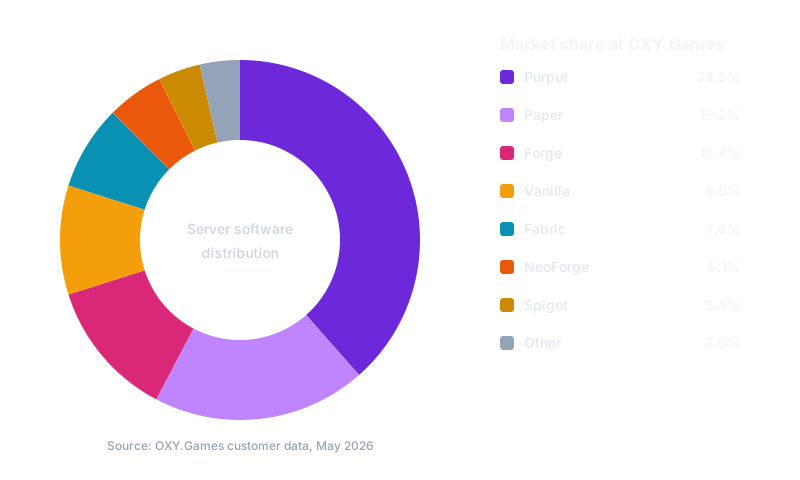
Based on our own customer data from May 2026, Purpur is by far the most popular choice at OXY.Games, used by 38.5% of active Minecraft servers. That's no coincidence — Purpur is our default server type for new Minecraft instances and most customers stick with it. Paper (which Purpur is built on) comes second at 19.2%, followed by Forge for modded servers and Vanilla for clean, unmodified setups. For the fastest drop support, we recommend Purpur or Paper — both are typically available within a week of a release.
One Paper-specific note for 26.2: Paper's 26.2 builds ship with Adventure 5 and removed previously deprecated API, and beds are regular blocks again. Most players won't notice; a handful of older plugins might. If a plugin breaks on Paper 26.2 specifically, check its page for a 26.2 build.
Modpacks are the risk group. Legacy modpacks often never get updated to a new drop. The developer has to update each individual mod, and for inactive packs that doesn't happen. Check your modpack's official page on CurseForge or Modrinth before getting your hopes up about an update.
World data structure — one-way since 26.1
Mojang reorganized the world directory structure in 26.1, and 26.2 keeps that structure:
- Overworld: from the old
world/root →world/dimensions/minecraft/overworld/ - Nether: from
world_nether/(Paper) orworld/DIM-1/(Vanilla) →world/dimensions/minecraft/the_nether/ - End: from
world_the_end/(Paper) orworld/DIM1/(Vanilla) →world/dimensions/minecraft/the_end/ - Player data: now in
world/players/
Coming from 26.1/26.1.2: your world is already converted — 26.2 makes no further structural changes.
Coming from 1.21.x: on the first server start after the update, Minecraft converts your world automatically. Have your own scripts or tools that read the old structure (backup scripts, world editors, map renderers)? Those need to be updated.
Back up first — no exceptions
Without a backup, a failed update leaves you with no safe rollback path — and potentially a lost world. PaperMC explicitly warns that after upgrading to 26.1 or newer, you cannot safely downgrade to a lower version. The world data structure is one-way. So a backup is genuinely mandatory, not optional — also for the small 26.1 → 26.2 hop.
At our Minecraft hosting, you create a backup via the panel. Open Backups in the sidebar and click Create backup. The full tutorial with screenshots is in our docs on backups. We also run automatic daily backups in the background.
Self-hosted server? Follow this:
- Stop the server completely
- Copy the entire server directory to an external location. This is your backup
- Verify that your world folders,
plugins/(ormods/) andserver.propertiesare all in the backup - Keep at least two backups in different locations
Step-by-step: updating your server to 26.2
The update flow is similar for every server type: stop the server, replace or update the server jar, restart, and check the console. The exact steps depend on what you run.
OXY.Games panel (the fastest route)
On an OXY.Games Minecraft server, you do the entire update in the panel:
- Stop the server first
- Go to More → Versions
- Select 26.2 in the version dropdown (choose your server type variant: Purpur, Paper, Vanilla, Forge or Fabric)
- Confirm the version change and wait for the installation to finish
- Go to Startup → Java version and check it's set to Java 25
- Start the server
The complete tutorial with screenshots is in our docs on server versions.
Important warning: don't switch between server types during a version update. If you go from Fabric to Paper, or Forge to Vanilla, your world, plugins and mods will not carry over automatically. Want to actually switch? Do it as a separate migration, not at the same time as the Minecraft version update.
Vanilla server (self-hosted)
- Stop the server (
stopin the console) - Download the 26.2
server.jarfrom minecraft.net - Replace the old
server.jar - Check your Java version with
java -version(must be 25 or higher) - Start with
java -Xmx4G -Xms4G -jar server.jar nogui - Read the console output for errors
For eula.txt issues: set eula=true again if the update reset it.
Purpur / Paper server (recommended) (self-hosted)
- Stop the server
- Download the latest Paper 26.2 build from papermc.io
- Replace
paper-x.y.z.jar - Adjust your start script if it references a specific filename
- Check your
plugins/folder and remove plugins without 26.2 support - Start the server, monitor
[ERROR]lines in the console
Purpur (a Paper fork with extra config options) usually follows in the same week. Identical update flow.
Forge (self-hosted)
- Stop the server
- Download the Forge installer for 26.2 from files.minecraftforge.net. At the time of this update, 65.0.9 was the latest build — Forge's 26.2 support landed in late July, about five weeks after the Minecraft release
- Run the installer with the
--installServerflag in a new directory - Update all mods in
mods/to 26.2 versions (26.1 and 1.21.x mods won't work) - Start the server
NeoForge (self-hosted)
NeoForge has 26.2 builds available as a beta release — check neoforged.net for the current version. At the time of this update, 26.2.0.28-beta was among the latest builds.
- Stop the server
- Download the NeoForge installer for 26.2
- Run the installer in a new directory
- Update all mods in
mods/to 26.2-NeoForge versions - Start the server
Running your server on a NeoForge modpack? Expect additional wait time. Even now that NeoForge itself supports 26.2, the modpack developer still has to update the pack separately. For legacy packs, that can take months, or never happen at all.
Fabric (self-hosted)
- Stop the server
- Download the Fabric Server Launcher for 26.2 from fabricmc.net
- Replace
fabric-server-launcher.jar - Update all mods in
mods/to 26.2-Fabric versions - Start the server
Fabric usually has faster drop support than Forge. Mods are often available within 1-2 weeks.
Updating plugins and mods after the version update
Updating the server version is step one. Step two: updating your plugins or mods to 26.2-compatible versions. A 26.2 server with old plugins means crashes, load errors, or plugins that simply have no functionality.
Updating plugins via the OXY.Games panel
At OXY.Games you can update most plugins directly from the panel:
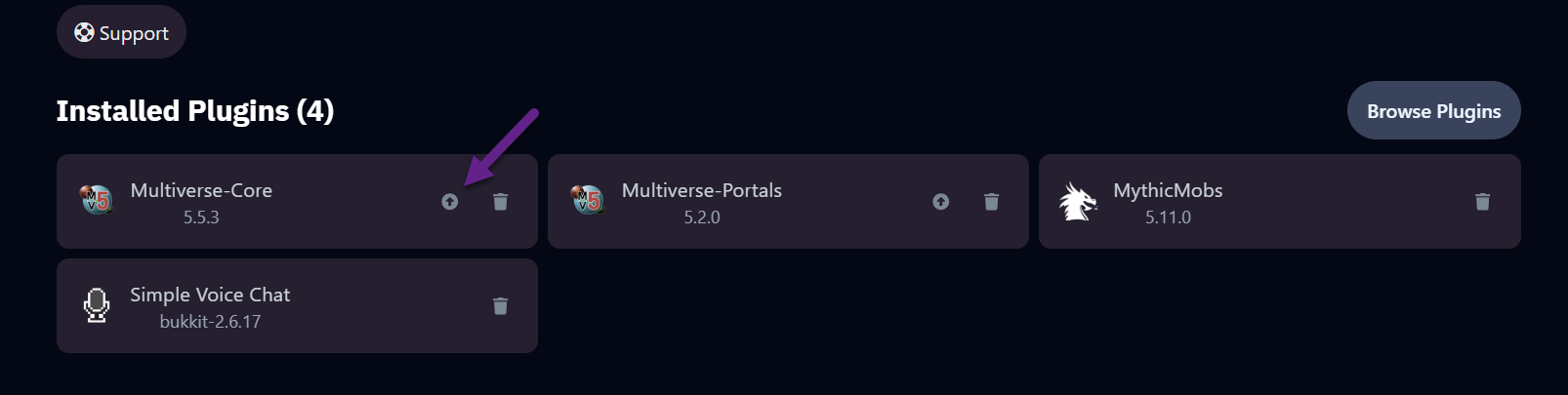
- Go to More → Plugins → Installed Plugins
- Next to each plugin with an available update, you'll see an update icon (arrow)
- Click the icon to update that specific plugin
- Restart the server to load the new version
Plugins without auto-update you do manually:
- Download the 26.2-compatible version from SpigotMC, Modrinth or the official plugin page
- Open File Manager → plugins/
- Remove the old
.jar - Upload the new version
- Restart the server
Updating mods via the panel
For Forge and Fabric servers the same principle applies: More → Mods → Installed Mods gives an overview with update arrows for compatible mods.
Important exception: modpacks. Running your server on a modpack (like Better MC, Create: Astral, ATM10)? Don't update individual mods. A modpack is a specific combination of mods carefully tuned to work together. Updating mods individually breaks that balance and causes crashes. Instead, wait for an official 26.2 release of the modpack itself, and use that as the upgrade path.
Common issues after updating
Server won't start — UnsupportedClassVersionError
Symptom in console:
java.lang.UnsupportedClassVersionError: ... has been compiled by a more recent version of Java Runtime
Or sometimes this:
Minecraft 26.1 and newer requires running the server with Java 25 or above
This means: your Java version is too low. "26.1 and newer" includes 26.2 — the requirement is identical for both drops.
Fix on self-hosted: install Java 25, and update your startup script to invoke the Java 25 binary (/usr/lib/jvm/java-25-openjdk/bin/java).
Fix on our Minecraft server hosting: open Startup → Java version in the panel, select Java 25, restart.
Plugins won't load or crash
Symptom: console shows [ERROR] Could not load plugin.
Fix:
- Check SpigotMC, Modrinth or the plugin's GitHub for a 26.2 build
- No 26.2 version? Move the plugin out of
plugins/temporarily to stabilize the server - For major plugins (EssentialsX, LuckPerms, WorldEdit), new-drop builds are usually available within a week of release
- On Paper specifically, a plugin that worked on 26.1 can still break on 26.2 due to Paper's API cleanup — check for a build that explicitly lists 26.2 support
Mods crash — Forge or Fabric
Symptom: server crashes immediately on start, crash report points to a specific mod.
Fix:
- Remove mods one by one from
mods/to isolate the culprit - On Modrinth you can filter by MC version 26.2 for compatible mod versions
- Running a modpack? Wait for the developer to release an official 26.2 version. Manually updating mods almost always breaks a modpack
Rolling back to your previous version
Update failed and you can't get it working?
OXY.Games customers: restore your latest backup via the Backups tab in the panel. That restores your world, plugins and configs in one go to the state before the update — no manual downgrade needed.
Self-hosted:
- Stop the server
- Restore your backup directory and overwrite the current world
- Replace the jar with the previous version
- (Forge/Fabric) Restore the previous
mods/folder - Start it back up
Note: players who were online after the failed update will lose their progress when you roll back.
Need help?
Stuck somewhere between drops, Java versions and plugin updates?
OXY.Games customer? Contact us. Our support is available 24/7 in Dutch, English and Russian, and knows the pitfalls from Java 25 crashes to plugin issues.
Not a customer but stuck with another host? Send us a message. We're happy to help think it through, and if you switch to OXY.Games we'll look into a personalized migration discount.
GG and happy crafting with 26.2.
Frequently asked questions
What is the latest Minecraft version right now?
Minecraft 26.2 "Chaos Cubed", released on June 16, 2026. It follows 26.1.2, the last hotfix of the 26.1 "Tiny Takeover" drop. In the year.drop.hotfix system, 26.2 means: second game drop of 2026.
Which Java version do I need for Minecraft 26.2?
Minecraft 26.1 and later — including 26.2 — require Java 25. If you start your server with Java 21 or older, you'll usually get a startup error like UnsupportedClassVersionError. At OXY.Games you change the Java version via Startup → Java version in the panel. Already updated to 26.1 before? Then Java 25 is already set and you don't need to change anything for 26.2.
When did Minecraft 26.1.2 come out?
The 26.1 "Tiny Takeover" drop released on March 24, 2026; the 26.1.2 hotfix followed on April 9, 2026. It has since been superseded by 26.2, released June 16, 2026.
Can I go back to 1.21.11 or 26.1 after updating to 26.2?
Not safely without a backup. PaperMC explicitly warns that after upgrading to 26.1 or newer, you can't simply downgrade — the world data structure is one-way. That's why a pre-update backup is mandatory. After a failed update, restoring a backup is the only safe rollback.
Is 4 GB RAM required for Minecraft 26.2?
No. Java 25 is required, 4 GB RAM is not. Mojang did raise the default JVM settings to 4 GB in 26.1. For a normal multiplayer server, 4 GB is a better floor than 2 GB, and modded servers easily hit 6-8 GB. 26.2's performance improvements actually lower memory usage slightly compared to 26.1.
Do I need to update my plugins for 26.2?
Yes. Plugins that work with items, mobs, packets, world data or server internals often break after a Minecraft drop — and Paper 26.2 additionally removed deprecated API. At OXY.Games you do this via More → Plugins → Installed Plugins by clicking the update icon next to each plugin.
Can I manually update my modpack to 26.2?
Usually not a good idea. A modpack is a specific combination of mods tuned to work together — updating individual mods breaks that balance. Wait for an official 26.2 release of the modpack. For inactive or legacy modpacks, that release may never come.
Minecraft drop changelog (2026)
Quick reference of the game drops so far under the new versioning system — this section grows with every drop:
26.2 "Chaos Cubed" — June 16, 2026 (current) Sulfur caves biome, Sulfur Cube mob, Friends List, experimental Vulkan renderer (client-side), music disc "Bounce". Server-side: faster chunk loading, lower memory usage, separate chat/command spam thresholds. Java 25. No new world conversion coming from 26.1.
26.1 "Tiny Takeover" — March 24, 2026 (final hotfix: 26.1.2)
Baby mob redesigns with new models, animations and sounds, Golden Dandelion (stops baby mob aging), craftable name tags (paper + metal nugget), trumpet note block sounds on copper. Server-side: first drop to require Java 25, default JVM allocation raised to 4 GB with ZGC, world directory restructure (world/dimensions/...) — one-way, no downgrade.
Sources
- Java Edition 26.2 official patch notes — Mojang
- Minecraft Wiki: Java Edition 26.2
- PaperMC 26.2 release notes
- Java Edition 26.1 official patch notes — Mojang
- PaperMC 26.1 release notes — backup and downgrade warning
- NeoForge project listing — NeoForge builds
- Minecraft Forge 26.2 downloads — Forge builds
- Adoptium Temurin 25 — Java 25 builds