SS14 Server Hosting: The Complete Guide for 2026
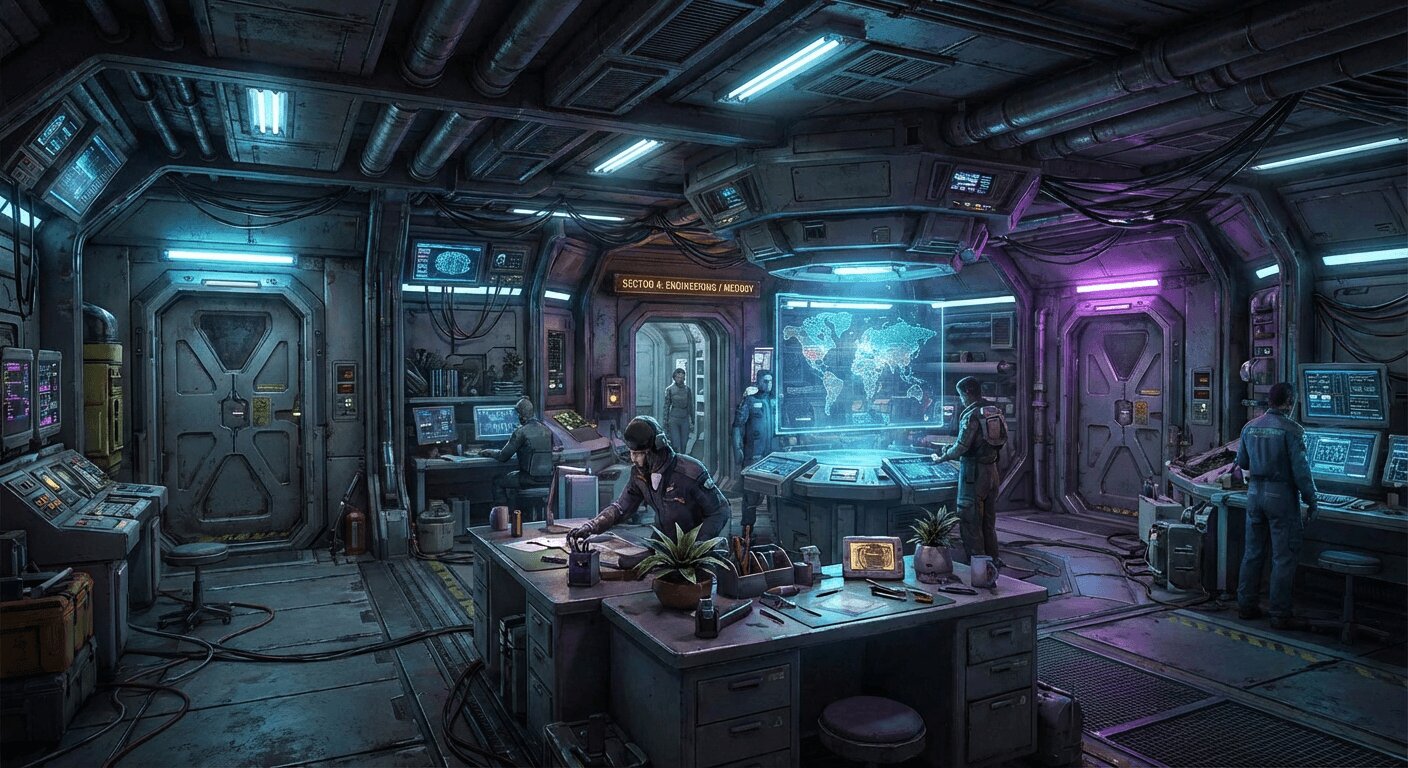
So, you want to run your own SS14 server. Good choice! Space Station 14 is one of the most creatively chaotic multiplayer games on the planet. Hosting your own server means you can decide the rules, the map and the vibe, as well as who gets welded into a locker. This guide will walk you through everything you need to know: what SS14 actually is, what hardware you need, how to set up a server and how to run it once it's live. If you're considering whether to self-host at home or rent an SS14 server hosting plan, we'll cover that too — without favouring either option.
The short version: SS14 is free and open source. It runs on .NET 10 and prefers fast CPU cores to lots of them. It uses port 1212 for both TCP and UDP. It will happily sit on a modest box until you become popular, at which point you will need something more powerful with a proper public IP address. That's the whole executive summary. The rest of this article explains the "how" and the "why it matters".
This is the pillar guide we wish existed when we first spun up an SS14 dedicated server for testing. We'll keep it practical. Gameplay tutorials, codebase deep-dives and fork comparisons will be covered in separate articles.
What Space Station 14 actually is
Space Station 14 is a 2D, top-down, multiplayer sandbox where dozens of players each take on a role aboard a doomed space station. These roles include captain, security officer, engineer, medic, chef, botanist and the person responsible for cleaning up vomit. Players must then work together to keep the station running while chaos, traitors, atmospheric fires and human incompetence actively work against them. It is the open-source spiritual successor to Space Station 13, the legendary 2003 BYOND game, and has been rebuilt from scratch using a modern engine.
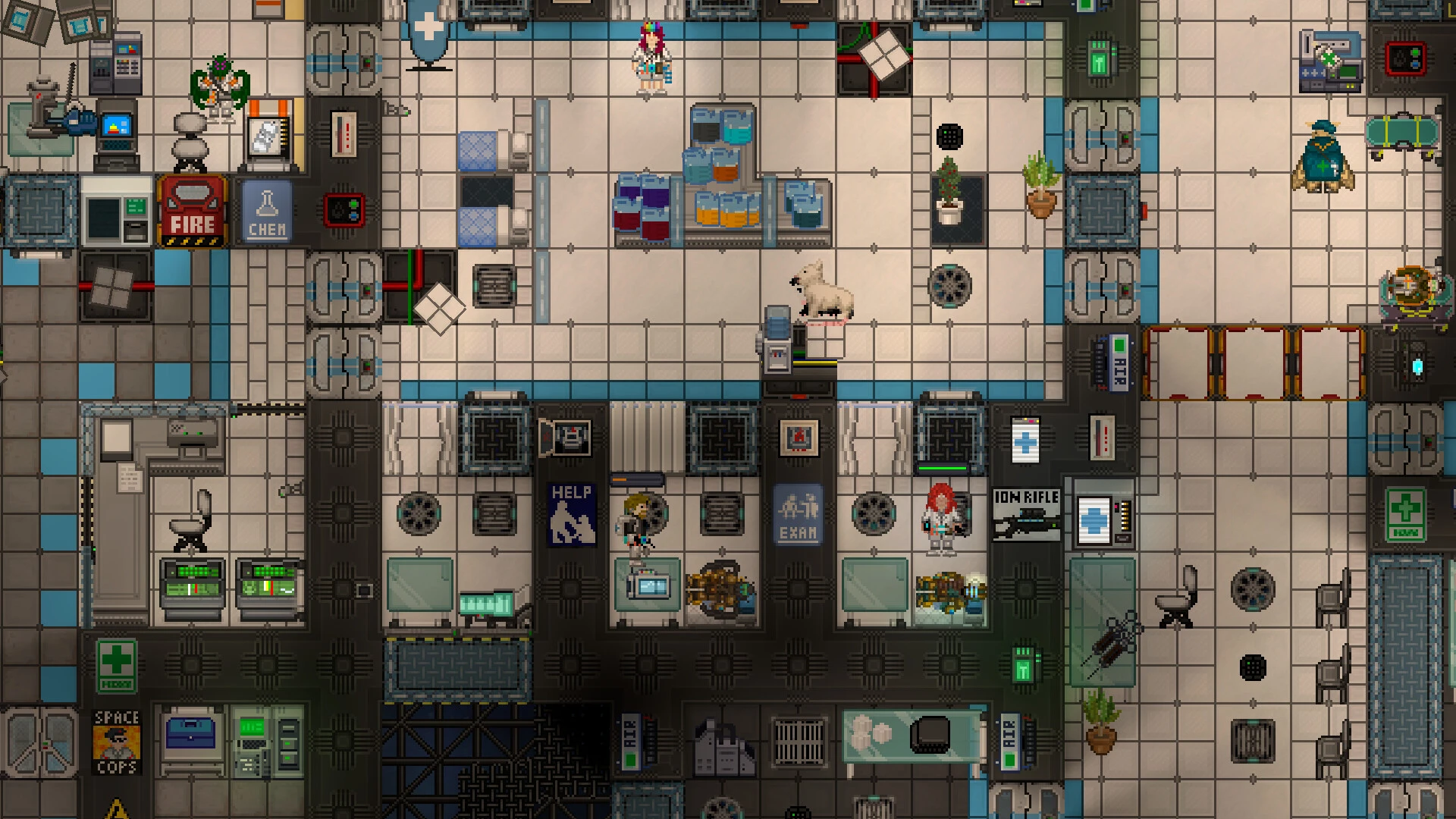
The developer is Space Wizards Federation, a volunteer open-source community rather than a studio. The underlying engine is their own RobustToolbox, which is written in C#. The entire project is publicly available on GitHub, is licensed under the MIT licence and is funded by Patreon. According to the developers, it is and always will be completely free.
As of October 2026, SS14 is in a free Steam Playtest — the Steam page still says "coming soon", with Early Access planned but not yet launched. Although parts of it are still officially labelled "pre-alpha", it is actively played by thousands of people every night. Concurrent player peaks on Steam sit at around 4,500, but that only counts Steam — most of the community uses the standalone launcher from spacestation14.com, so the real active numbers are considerably higher. The public server browser (the 'hub') lists dozens of community servers at any given time, offering a range of experiences from hardcore roleplay to absolute clown-car madness.
Why do people love it? In just one paragraph.
SS14's appeal lies in its emergent storytelling. The station simulates power grids, chemistry, atmospherics, disposal chutes, PDAs, cloning and robotics, and each round, a random subset of players receive secret antagonist objectives. This means that no two shifts are the same. In one round, the crew evacuate to CentComm triumphantly. The next ends with a singularity loose in engineering, a revolutionary coup in progress and the clown declaring himself captain somehow. That's the pitch: it's a disaster simulator disguised as a job simulator, and if that sounds like fun, you'll have a great time running a server for your friends.
Why host your own SS14 server
The public hub is great, but the fun you can have is limited by someone else's rules. Hosting your own SS14 server unlocks four things:
- Control. Your rules, your admin team, your roleplay style, your map rotation. Ban whoever you want and allow whatever you want.
- Community. A server becomes a place with a Discord channel, regular attendees and shared jokes. It's impossible to create that kind of environment on a public server that you don't own.
- Modding and tweaking. SS14's configuration system offers hundreds of customisable options, including tick rate, lobby duration, job timers, panic bunker and singularity activation. You decide where to set them.
- Uptime and reliability. Public servers come and go. If you want your shift to be available online at 8 pm every Friday for the next two years, you will need to run it yourself.
That said, hosting is a real commitment. Let's discuss the two options available.
Self-hosting vs renting an SS14 server
This is usually the first major decision. Both options are valid, and which is 'best' depends almost entirely on your situation.
Self-hosting at home
Running the server on your own PC or an old laptop is the cheapest option — it's basically free if you already own the necessary hardware. It's fine for a few friends testing builds or a tiny private RP group. All you have to do is download the server binary, extract it, run the executable, and you're good to go. You can even give yourself admin privileges with a single configuration entry.
The problem arises when anyone outside your house tries to join. You'll need to port-forward 1212 (both TCP and UDP) through your router. This is a fifteen-minute task the first time, but it could take up to two hours if your ISP uses CGNAT (carrier-grade NAT). Your home IP address is most likely dynamic, so players' favourites will break whenever your router reboots, unless you set up dynamic DNS. Your upload bandwidth is probably a fraction of your download bandwidth. If someone decides to DDoS you, your whole household will lose internet access until the attack stops. Many ISPs also technically forbid running public services on residential lines, so check your contract before committing.
Self-hosting is suitable for: tiny private groups, developer testing, learning how the stack works, and people who already run other home lab equipment and know what they're doing.
Renting from an SS14 server hosting provider
Renting an SS14 dedicated server — or, more accurately, a managed slot on a dedicated-grade node — is a trade-off between money, time and reliability. A proper host provides:
- A public, static IP address that your players can bookmark once and use forever.
- Symmetric gigabit-or-better bandwidth with built-in DDoS protection.
- A web control panel — you click Start, the server starts; you edit
server_config.tomlin the browser; you pull logs without SSH. - 24/7 uptime on hardware that isn't your gaming PC in the middle of a Valorant match.
- Visibility on the public hub, because the server is always reachable from the internet and is advertised properly.
The obvious downside is that it costs money. For SS14 specifically, the cost is minimal — a few euros per month for a small server and a few tens of euros for a large one — but it's still an ongoing expense. Another honest downside is that you're tied to the host's panel, update schedule and support quality.
Consider renting if you want to attract players outside of your social circle, if you want your server to be listed on the hub, if you want peace of mind regarding your uptime, or if you simply don't want to deal with ports and firewalls.
Our rule of thumb is as follows: if you have fewer than five players and are just experimenting for the weekend, self-host. If you have more than five players, have established a real community or want hub visibility, then rent a server. We run SS14 on high-frequency CPUs (up to 4.9 GHz) from our data centre in the Netherlands, so if you choose this option, you'll enjoy low ping if you're in the Netherlands, Belgium, Germany, or surrounding countries.
Hardware and system requirements for an SS14 server
SS14's server is a .NET 10 application that has been developed using RobustToolbox. It runs on Windows, Linux and macOS, but only on 64-bit systems. Most production servers run Linux because it is cheaper and more lightweight, and it works well with auto-update tooling like SS14.Watchdog. If you're going fully DIY, you'll need the ASP.NET Core 10 runtime installed.
The three numbers that matter are CPU, RAM and bandwidth. Here's the realistic picture.
CPU: single-thread speed is king
SS14's simulation tick loop is primarily single-threaded. This means that when your round is full and all 80 players are running around setting off plasma fires, the bottleneck is the one CPU core performing the intensive processing. Although networking and a few auxiliary systems run on other threads, the main game logic does not.
In plain English: A fast modern core outperforms many slow cores. A server CPU with a high boost clock and strong single-threaded instruction per cycle (IPC) will outperform a 64-core monster throttled to 2.1 GHz per core. The developers have said they can support over 250 players at 20 ticks per second with the right hardware, but this is dependent on high-quality cores rather than a large number of cores.
When it comes to hosting, what you're really asking is: Does this provider run the right kind of CPU? Look for modern, server-grade Intel or AMD parts with boost clocks in the 3.5 to 5 GHz range. Budget shared nodes running ancient Xeon E5s from 2015 are where SS14 servers go to die during peak rounds. Our nodes clock up to 4.9 GHz specifically because this kind of workload benefits from it.
RAM: how much you actually need
Here's what we observe in practice across the SS14 servers. Because our plans are sized for this workload, we can match them to real use cases.
- SS14 Spark (2 GB) — testing, dev, private games with 2–4 friends. It's genuinely fine for small groups.
- SS14 Core (4 GB) — small to mid-size crew, regular rounds, 10–20 players.
- SS14 Boost (6 GB) — busy evenings and custom events, comfortable for 20–30 people.
- SS14 Premium (8 GB) — the most popular choice. It handles modded SS14 with 20–30 players with ease.
- SS14 Ultra (12 GB) — heavy configs, forks with extra content, higher concurrency.
- SS14 Titan (16 GB) — large public servers with over 40 regular players and the full range of modded content.
Memory usage increases non-linearly with the number of entities, atmospheric tiles and items dropped on the floor by players who don't clean up after themselves. We've measured this across our whole fleet — 28 days of real RAM data shows a median SS14 hour at 2.2 GB with the highest at 9.6 GB. Honest advice: don't buy too much on day one. Starting at Core or Boost and upgrading as you grow is almost always the right move — it's just one click on our panel.
Bandwidth: less than you think
SS14 uses a custom UDP protocol that sends entity state changes with each tick. Bandwidth usage per player is modest for typical gameplay, with brief spikes during major events such as explosions, mass teleports or round transitions. Any serious host will provide a gigabit link (and we have multiple 10 Gbit links!), so bandwidth basically never becomes the bottleneck — the CPU will reach its limit first.
Ports, hub, and networking
The default port is 1212 — the server listens on the same port for both TCP and UDP, so both protocols need to be open. UDP handles game traffic, while TCP handles the HTTP status/info API that the launcher and hub use to probe your server. To have your server listed publicly, set hub.advertise = true in server_config.toml, which registers your server with hub.spacestation14.com. Advertising is off by default, which is a useful safety feature. It also means that you accept the hub rules when you turn it on, such as not providing false information, not mining cryptocurrency on clients and properly flagging adult content.
How to set up an SS14 server on OXY.Games
The following assumes that you are renting rather than running things from your bedroom. If you are self-hosting, the official Space Wizards documentation contains a full DIY tutorial. We recommend using the SS14 Watchdog wrapper alongside it (this is the official tool for auto-updates and restarts). Running a fork like Goob Station or Delta-V? See our compile-from-source guide. Otherwise, here's the managed path, which is also covered step-by-step in our SS14 getting started docs.
Step 1 — Pick a plan and order
Go to our SS14 hosting page, select a plan that matches your expected player count (start small and scale up as needed) and complete your purchase. Provisioning is automatic — you will receive an email containing your panel login URL, username and initial password within seconds of your payment being processed. Change that password on your first login. Always.
Not sure where to start? If you're just testing it out with a couple of friends, Spark is free to try — making it one of the cheapest entry points for affordable SS14 hosting in the EU. If you're building a regular community, Core or Boost covers most real-world use cases. Don't buy Titan on day one.
Step 2 — Log in to the game panel
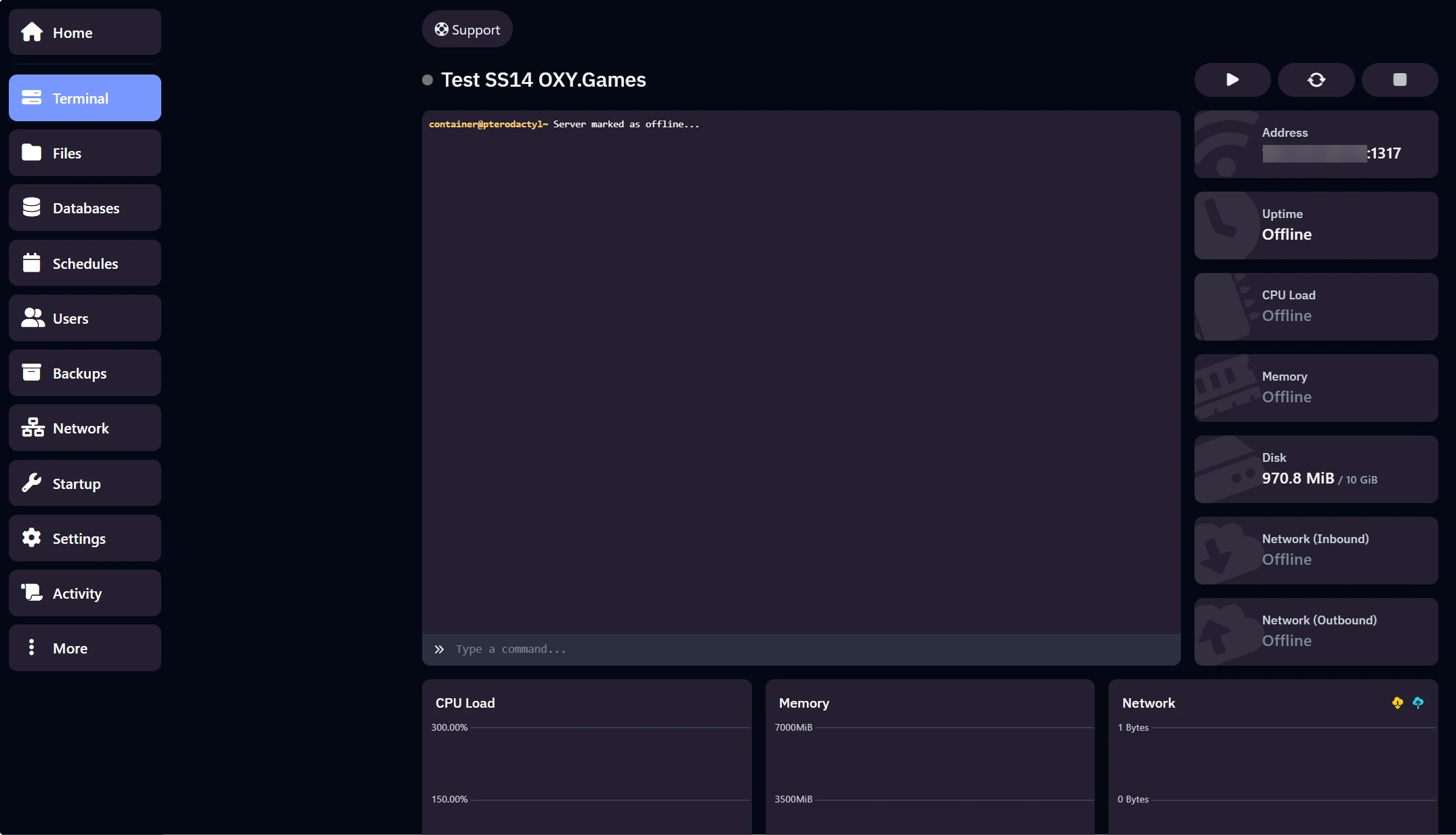
Our panel is Pterodactyl-based, the same clean, open-source panel used by many modern hosts. (If you get stuck when logging in for the first time, our guide on logging in to the game panel will walk you through the process with screenshots.) You will land on a dashboard with your server at the forefront — on the left-hand side there is a menu, in the middle there is a console and on the right there is a status strip showing Address, Uptime, CPU Load, Memory, Disk and Network.
The left menu is where you'll spend most of your time:
- Terminal — live server output plus the Start, Restart, and Stop buttons at the top.
- Files — the complete file structure of your server, with a built-in editor for files such as
server_config.toml. - Startup — editable environment variables and startup flags.
- Databases, Backups, Network, Schedules, Users — the usual suspects.
Step 3 — Start your server
When your server is first delivered, it will be in Offline mode and nothing will be running yet. This is normal. Click Terminal in the left menu, then press the Start button (the play icon) at the top of the panel.

The first startup is the slow one. The panel will automatically:
- Download the required server files
- Fetch the latest official server version
- Extract and prepare all components
You will see a series of Downloading, Extracting, and Pull complete messages scroll through the console. Don't stop the server during this process — it can take a few minutes. Subsequent starts are much faster after the first run.
Once startup has finished, the status indicator will turn green and the dot at the top of your server name will also turn green. The console will then confirm that the server is running. The public address of your server (in IP:PORT format) is displayed in the info panel on the right — click it to copy. For a more detailed walkthrough with screenshots of each startup state, see our Starting your Space Station 14 server guide.
If the server appears to be stuck for more than 10–15 minutes when you first start it up, check the console output or contact support.
Step 4 — Do a quick config pass
Before inviting anyone, open Files in the left menu and locate server_config.toml in your server root. The full set of options is documented in our basic SS14 server configuration guide, but at a minimum you will probably want to set the following:
[game] hostname— the name that players see in the server browser. Make it memorable.[game] maxplayers— set this to a number that your plan can actually handle.[game] welcomemsg— the message players see when they join.[hub] advertise— set totrueif you want to be listed on the public hub.[hub] tags— tag your server with its style (RP level, language, region) so people can find it.[auth] mode— leave at1(optional) or set to2(required) to force SS14 accounts only. Required mode drastically reduces griefing.[console] promotehost— your SS14 account username will automatically promote you to full admin when you log in. This is the clean way to bootstrap yourself as an admin (more on that below).
Restart the server after making any changes. The settings in server_config.toml are read at boot time, not during operation.
Step 5 — Connect to your SS14 server
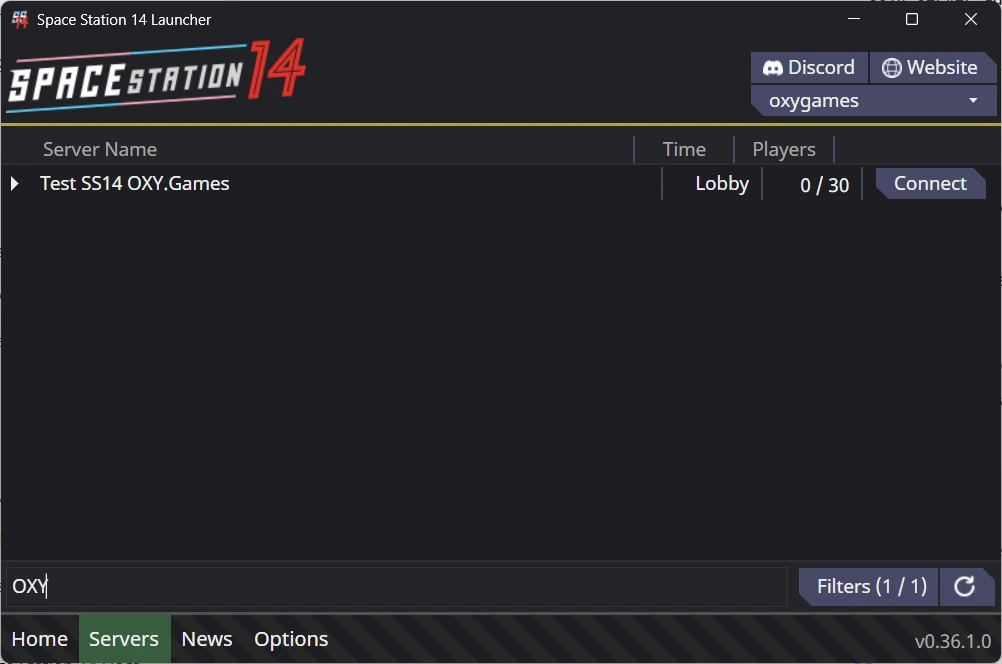
Grab the Address from the info panel on the right-hand side of your OXY dashboard (one-click copy). Our how to connect to your SS14 server guide provides full step-by-step instructions with screenshots, so you can see exactly what each launcher screen looks like. Then:
- Download the Space Station 14 Launcher from spacestation14.com/about/download. It's free and official, and you'll need a free SS14 account.
- Open the launcher and log in using your SS14 account details.
- There are two ways in:
- Via the server browser (Servers tab) — if your server is advertising on the hub, search for part of its name and click Connect. Private/whitelisted servers won't show up here.
- Via Direct Connect (recommended for the first time) — on the Home tab, click Direct connect to server, paste your
IP:PORT, and click Connect. You can also add the server to your favourites here, so you and your friends can rejoin with one click forever.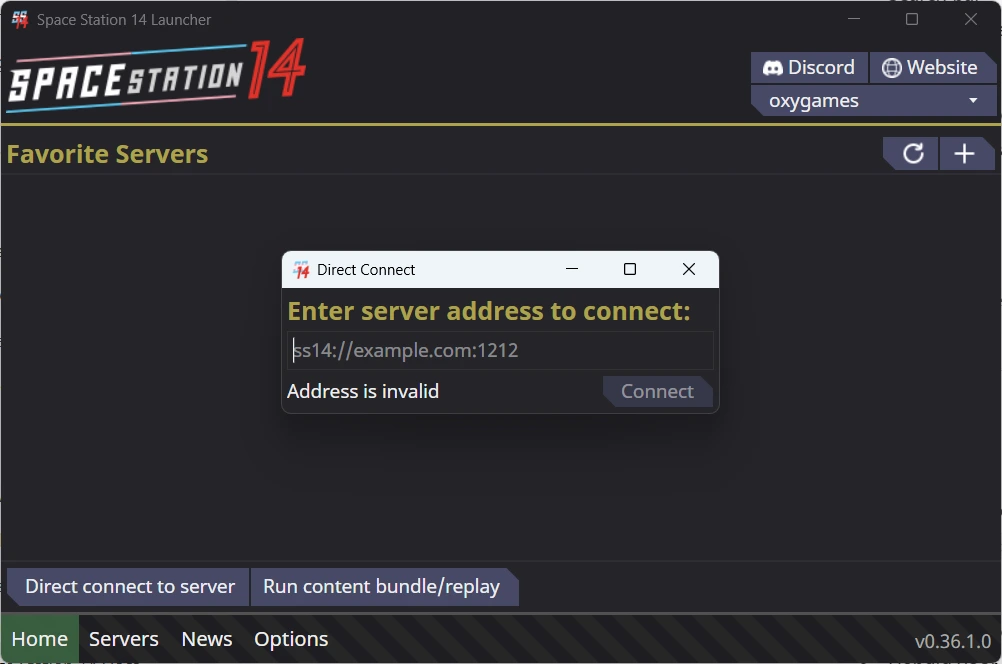
- The first connection downloads the exact client build and content version that your server is running, which is how SS14 avoids version mismatches. This process takes a while. Don't cancel it.
- Once the download has finished, the game will load and drop you into the lobby. Welcome to your station!
If you have enabled hub advertising, your server should appear in the public browser within a minute or two of starting up.
Admin basics: How to run your server without becoming a tyrant (or an absent landlord)
Once people join your server, you become an admin. Here's the absolute minimum you need to know:
Becoming admin on your own server
The easiest way to do this on a hosted SS14 server is via the promotehost entry in server_config.toml that we mentioned above. Add your SS14 username to the [console] promotehost setting, then restart the server. The next time you log in to that account, you will be automatically promoted to full host-level admin. That's the clean path.
From there, you can use the in-game admin panel to grant admin permissions to other players. You won't need to edit the configuration files again just to manage your staff.
The permission system
Permissions in SS14 are bitflag-based. Each admin rank comprises a set of flags, such as Admin (basic verbs), Ban, Fun (events and fun spawns), Spawn, VarEdit, Server and Permissions, as well as the dangerous Host flag, which can perform any action, including changing CVars at runtime via sudo.
In practice, most servers use an informal ladder system: Trial Admin → Game Admin → Senior Admin → Host. Give new admins only the flags they need. Trial admins typically don't receive the Fun or Host flags. The Permissions flag — which lets an admin add or remove other admins — is reserved for senior staff only. Scope creep is the fastest way to break an admin team.
The keys you need
- Tilde
~— open the client console. Anyone can open it; admin commands only work with permission. - F5 — entity spawner (admin-gated). Use this to spawn items, mobs or anything else.
- F6 — tile spawner. Useful for building floors and walls and for repairing breaches.
- Admin menu — accessible via the admin verb menu or its remappable keybind, and gives you access to the player list, ban/kick GUI, adminwho and AHelp panel.
- Chat prefix
/— most admin chat commands (like/adminhelp) start with a slash in the chat bar.
The commands that you will use on a daily basis
kick <username> [reason]— self-explanatory.ban <username> [duration] [reason]— bans can also be implemented via the right-click verbs in the admin menu.adminhelp/ AHelp — the player-to-admin ticket system. When someone clicks the 'Help' button, you'll see the request in the admin panel. Answer it. That's 80% of the job done!adminwho— who's admin and online right now.sudo <command>— run a command as the server console. This is needed for CVar changes and other host-level operations.cvar <name> [value]— get or set a CVar live. Useful for toggles likegame.panic_bunker.enabled.- View Variables (VV) — right-click on any entity, then select 'Admin' and then 'View Variables'. Edit components live. This is an incredibly powerful but equally dangerous feature.
- Announce — broadcast a message to the whole server from the admin menu.
What does moderation actually look like?
Moderating SS14 mostly involves watching AHelp and responding quickly. Players will report griefing, ask questions about the rules, report racist behaviour in OOC and call out traitors who are clearly metagaming. Answer tickets, make a decision and write a quick admin note before moving on. Use bans sparingly and document them — the adminnotes command exists for a reason.
For major events, you have the necessary tools: you can spawn items and mobs at F5, change the map with the correct flag and edit the variables of live entities. You can also run game-mode events, such as a surprise meteor storm. The game is designed to make it easy for admins to run emergent stories. Embrace that.
FAQ
Is SS14 free?
Yes, Space Station 14 is completely free to play and open source (MIT licensed). The Space Wizards Federation has confirmed that it will remain free permanently. The only thing you need to pay for is a server if you want to host your own.
How many players can an SS14 server accommodate?
In theory, hundreds — the developers have demonstrated over 250 players on well-tuned hardware. Realistically, a mid-sized community comfortably supports 30–80 concurrent players. Beyond 80, you need serious single-thread CPU performance and careful configuration tuning. Most of our plans are sized for the 20–80 range.
Which server host is best for SS14?
The best SS14 server hosts provide a fast single-thread CPU, a data centre near your players and a user-friendly control panel. For Dutch and Belgian players specifically, low-latency EU hosting with euro billing and fast human support is hard to find — that's where OXY.Games' SS14 hosting comes in. For technical hosts elsewhere, a cheap VPS plus SS14.Watchdog works well.
Is port forwarding necessary for SS14?
This only applies if you're self-hosting from home. You need to open port 1212 (both TCP and UDP) and make it accessible from the outside world. However, if you're renting from a managed host (like OXY.Games), port forwarding is already handled and your server is on a public IP with exposed ports.
Which operating system does the SS14 server run on?
Windows, Linux or macOS — 64-bit only and requiring the .NET 10 runtime. Of these, Linux is by far the most common choice for production servers, as it is lighter and cheaper, and works well with auto-update tooling.
Is it necessary for an SS14 server to be online 24/7?
No, but if you want regular players and visibility on the hub, it's better to have more uptime. Servers that frequently disappear get less traction on the hub and lose community momentum. This is one of the main reasons why renting a SS14 server is better than home-hosting for any serious community.
Honestly, hosting an SS14 server in 2026 is easier than ever. The game is free, the tools are reliable, the hub facilitates discovery, and a few euros a month gets you a server that will outlive most relationships. Whether you rent an SS14 server from us or go fully DIY, the important thing is to just get started — the first round of your own community is the one you'll remember. If you'd prefer a managed service, we run SS14 hosting on high-frequency CPUs (up to 4.9 GHz) in EU data centres and you can be up and running in under ten minutes.
Have fun! Don't let the clown near engineering.
GG 🛰️
You might also like
How Much RAM Do Game Servers Actually Use? 28 Days of Fleet Data
A median Minecraft server-hour uses 1.9 GB. A median Project Zomboid hour almost 4. We measured every game server on our nodes for 28 days —...
How to Build a Space Station 14 Server From Source (Forks Included)
Compile an SS14 server from source — vanilla or a fork like Goob Station or Delta-V: .NET 10, clone, package with hybrid ACZ, and keep it up...
Project Zomboid Build 42 Server: RAM & Requirements (2026)
How much RAM does a Build 42 server need? ~6 GB base + 0.5 GB per player and 2–4 GB for mods — community guidance checked against our live-s...